Time
Local time in 24-hour format, with cards that flip as each minute changes.
A little rhythm for your desktop
A flip clock you can turn, personalize and keep beside your work.
Apple Silicon · macOS 14 or later
Keep local time, check the date or settle into a focus session. PATAPATA CLOCK works offline, without an account.
Preparing for the Mac App Store. A download link will appear here when the app is available.
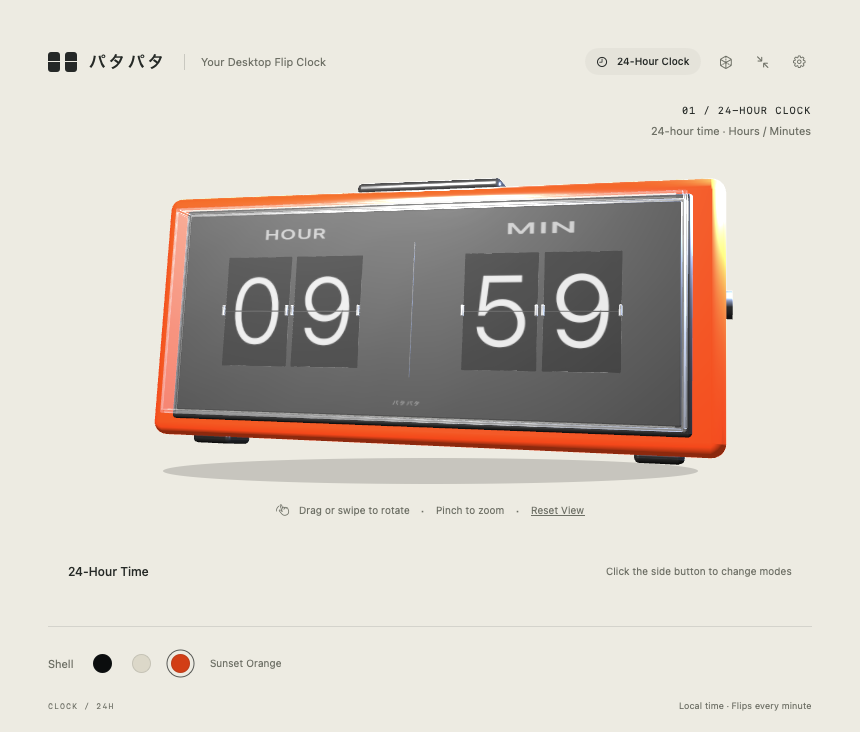
Local time in 24-hour format, with cards that flip as each minute changes.
Month, date and English weekday above the hours and minutes, in an expanding two-row clock.
Focus and rest sessions with pause, resume and a vibrating clock model when time is up.
Text fields support the native Cut, Copy, Paste, Select All, Undo and Redo commands.
For questions or problems with PATAPATA CLOCK, email Unick. Please include:
Sending email is your choice. The app does not automatically collect or upload diagnostics. Never send passwords, payment details or other sensitive information.
The transparent clock is the default launch view. Move the pointer over the clock to reveal its toolbar, then use the gear button. Choose Return to Standard Mode for a full window.
Last updated: November 19, 2026
This policy applies specifically to PATAPATA CLOCK, its product page on Unick Apps and support email. Other Unick apps have their own policies.
The clock and settings work offline. PATAPATA CLOCK has no sign-in, ads, analytics or tracking SDKs, cloud sync or automatic diagnostic uploads. It does not send your clock settings, timer activity or engraving to us.
Display modes, appearance, interface language, engraving and Pomodoro durations are stored locally to restore your choices. You can change them in Settings or clear the engraving field. Removing the app may leave macOS preferences behind; contact support if you need help resetting them.
This page is served by Google Firebase Hosting. Visiting a website sends request information, such as your IP address and browser/request metadata, to its hosting provider for delivery, operation and security. The app being offline does not mean website requests leave no records. This product page adds no analytics, advertising scripts, tracking cookies or contact form. Language is selected through the URL and browser preferences, without a stored website profile.
If you email us, we receive your email address and whatever message, version information or attachments you choose to provide. We use that information to respond and investigate your request, and not for advertising. Email is handled by your email provider and our Gmail service. Contact the same address to request deletion of correspondence; applicable provider retention, backups or legal obligations may limit immediate removal.
For privacy questions or requests about information you sent us, contact unick20251016@gmail.com. We update this page when these practices change, and show the revision date above.
Hosting and email provider information: Firebase privacy and security · Google Privacy Policy